|
Creating a CSS only cross browser drop down menu |
||||||||
I'll say this up front, I'm not a CSS guru. I like CSS, but it can be incredibly frustrating. One of the clients I am currently producing work for requires a high level of Accessibility. High enough that we need to avoid using JavaScript unless any script has a "Non" JavaScript equivalent.
The site navigation is through a top level horizontal menu, but what if we also want a drop down menu? Can we do it in CSS only, and it still be Firefox, Internet Explorer 6,7 and 8 compatible?
Yes, we can, but it's a lot of code, and it's not pretty. The basic concept behind most CSS menus is to use a list, and transform each list item to suit your styling. So we will create a div, with a class of menu. Then create a list inside it.
2 <ul>
3 <li><a href="">Top menu option
4 <!--[if IE 7]><!--></a><!--<![endif]-->
5 <!--[if lte IE 6]><table><tr><td><![endif]-->
6
7 <ul>
8 <li><a href="">Link 1</a></li>
9 <li><a href="">Link 2</a></li>
10 <li><a href="">Link 3</a></li>
11 <li><a href="">Link 4</a></li>
12 <li><a href="">Link 5</a></li>
13 <li><a href="">Link 6</a></li>
14 </ul>
15
16 <!--[if lte IE 6]></td></tr></table></a><![endif]-->
17 </li>
18
19 </ul>
20
21 </div>
Notice that there are some specific if statements relating to different versions of Internet Explorer. these basically make the functionality the same for each version, they are compensating for the differences in code handling between IE versions.
Next create a set of CSS styles to alter the appearance of the list. I am not going to go into the CSS line by line, as it is commented, but I'll explain the methodology behind it.
The top level menu item is always displayed, but the list is hidden using "visibility:hidden". When the user mouse's over the menu div the CSS applies a:hover ul{visibility:visible;. This makes the list visible.
2
3.menu {width:149px; height:32px; position:relative; z-index:100;border-right:1px solid #000; font-family:arial, sans-serif;}
4
5/* hack to correct IE5.5 faulty box model */
6* html .menu {width:149px; w\idth:149px;}
7
8/* remove all the bullets, borders and padding from the default list styling */
9.menu ul {padding:0;margin:0;list-style-type:none;}
10.menu ul ul {width:149px;}
11
12/* float the list to make it horizontal and a relative position so that you can control the dropdown menu positon */
13.menu li {float:left;width:149px;position:relative;}
14
15/* style the links for the top level */
16.menu a, .menu a:visited {display:block;font-size:12px;text-decoration:none; color:#fff; width:138px; height:30px; border:1px solid #000; border-width:1px 0 1px 1px; background:#c0c0c0; padding-left:10px; line-height:29px; font-weight:bold;}
17
18/* a hack so that IE5.5 faulty box model is corrected */
19* html .menu a, * html .menu a:visited {width:149px; w\idth:138px;}
20
21/* style the second level background */
22.menu ul ul a.drop, .menu ul ul a.drop:visited {background:#c0c0cc url(arrow.gif) no-repeat 130px center;}
23
24/* style the second level hover */
25.menu ul ul a.drop:hover{background:#c0c0cc url(arrow.gif) no-repeat 130px center;}
26.menu ul ul :hover > a.drop {background:#c0c0cc url(arrow.gif) no-repeat 130px center;}
27
28/* hide the sub levels and give them a positon absolute so that they take up no room */
29.menu ul ul {visibility:hidden;position:absolute;height:0;top:31px;left:0; width:149px;border-top:1px solid #000;}
30
31/* another hack for IE5.5 */
32* html .menu ul ul {top:30px;t\op:31px;}
33
34/* style the table so that it takes no part in the layout - required for IE to work */
35.menu table {position:absolute; top:0; left:0; border-collapse:collapse;}
36
37/* style the second level links */
38.menu ul ul a, .menu ul ul a:visited {background: ghostwhite; color:#000; height:auto; line-height:1em; padding:5px 10px; width:128px;border-width:0 1px 1px 1px;}
39
40/* yet another hack for IE5.5 */
41* html .menu ul ul a, * html .menu ul ul a:visited {width:150px;w\idth:128px;}
42
43/* style the top level hover */
44.menu a:hover, .menu ul ul a:hover{color:#000; background:#c0c0cc;}
45.menu :hover > a, .menu ul ul :hover > a {color:#000; background:#c0c0cc;}
46
47/* make the second level visible when hover on first level list OR link */
48.menu ul li:hover ul,
49.menu ul a:hover ul{visibility:visible;}
There are also a lot of other browser specific hacks present, as the aim was to get the menu working in every Internet Explorer version, and be Accessible.
There is a demo of this here: CSS menu demo


|
Windows 2003 Server does not stream F4V videos - adding mime types |
||||||||
With the introduction of Adobe's new .F4v flash wrapper you may find that your server does not respond well to files of the .f4v extension. Mine has been returning a 404 error, despite the file being in the right location.
This appears to be a Mime type error, rather than any coding error. Your server simply does not know what type of file the .f4v is, so we need to tell it.
- On the Windows 2003 server, open the Internet Information Services Manager.
- Expand the Local Computer Server.
- Right-click the local computer server and select Properties.
- Select the MIME Types tab.
- Click New and enter the following information:1Associated Extension box: .F4V
2MIME Type box: video/mp4 - Click OK
You must then restart the World Wide Web Publishing service, as changes do not take effect until the service is refreshed. At this point you should have working .f4v flash movies.
|
My snowy adventures in the Cotswolds |
||||||||
If you live in the UK you can't have helped notice that a snowy apocalypse has descended upon us, and the whole country has grind to a halt.
I was on my way home across the Cotswolds, just about to start taking advantage of the company's home working policy, when it all got a bit too much for my old Peugeot. I ended out getting stuck between two reasonably steep hills in a village called Seven Springs.
The Cotswolds are picturesque at the best of times, but in the snow they are pretty stunning.
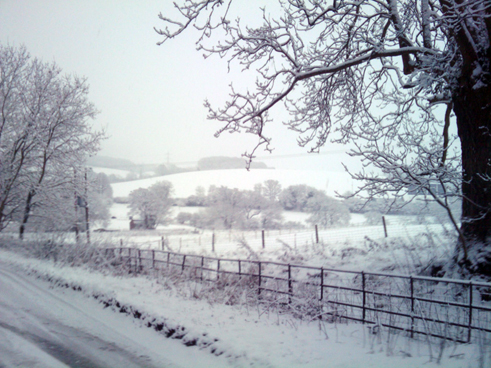
It's just a shame I didn't have the Canon SLR, the HTC Magic's camera dealt with taking shots until the light started failing, then it all gets a bit grainy.
This last one was taken whilst I ran back down the queue of vehicles on my way to an open motorway.

|
Embedding Flash content using the SWF Object javascript method - the short answer |
||||||||
There are several sites available detailing how to embed SWF Object's into your sites. By far the most reliable, and cross browser compatible without writing any form of Internet Explorer / Firefox hack is the SWF Object javascript plugin.
Adobe have a Developer Connection article detailing how the SWF Object javascript plugin works, http://www.adobe.com/devnet/flashplayer/articles/swfobject.html but it is six pages long, and seems to avoid any direct example of the most straight forward method of implementation. I am sure that it is all encompassing, but I was looking for a quick bullet point style guide.
So here it is:
1. Include the call to the Swobject Javascript library, don't host this yourself, just link directly to Google's code base.
2. Setup the flash variable scopes, this ensures that they exist, and it is a handly place to set global variables for your flash. I normally include this in the header of my frameworks.
2 var flashvars = {};
3 var attributes = {};
4 var params = {wmode: "transparent", allowFullScreen: "true"};
5</s cript>
3. Setup a div for your flashcontent. This is what will be displayed if you are not flash enabled. Ensure that your "No Flash content" either closely represents the actual flash content, or signifies a link to getting Adobe flash in some way.
2 <a href="http://get.adobe.com/flashplayer/" target="new_window" title="Follow this link to get Adobe Flash player"><img src="flash_no_content.jpg" alt="Follow this link to get Adobe Flash player" /></a>
3</div>
At thsi point the "No Flash" content will be displayed on screen.
4. Lastly include the script to switch out the "No Flash content" with the actual flash.
This Javascript will over right the div (by id) and insert the flash object into it. Supply the path, the div ID to replace the content for, followed by the height and width values. Next is the Flash player version (set it to a higher number than the Flash player version for Non flash content testing). Next you include the variables scopes you created in stage 2, passing in any other values your flash content is expecting.
2 swfobject.embedSWF("#path#/flashVideo.swf", "flashcontent", "150", "200", "9", "", flashvars, params, attributes);
3</s cript>
If everything is running correctly you can now see your flash content. Simply change the flashplayer value, 9 above, to something higher, for example 20 to see the non flash content.