|
Cross Site scripting hack test form |
||||||||
One of the more basic cross site scripting hacks is where the user simply 'injects' other web templates into yours, using a form.
By submitting a string through a form and allowing it to return the value in an unencoded format a user can inject malicious code. In this example we will create a frameset, and set the source as a different domain than the originating site.
To test this yourself create a simply form, and set the value of the text field to the value that the user enters.
2
3<form method="post">
4
5<input type="text" name="formValue" size="30" value="<cfoutput>#form.formValue#</cfoutput>">
6<input type="submit" name="Action" value="Send">
7
8</form>
I'm using ColdFusion, but the language itself doesn't matter, the vulnerability is the same. Next submit the form using a string like the one below. This string is built up of the form field name, and a valid html frameset, surrounded by escape characters.
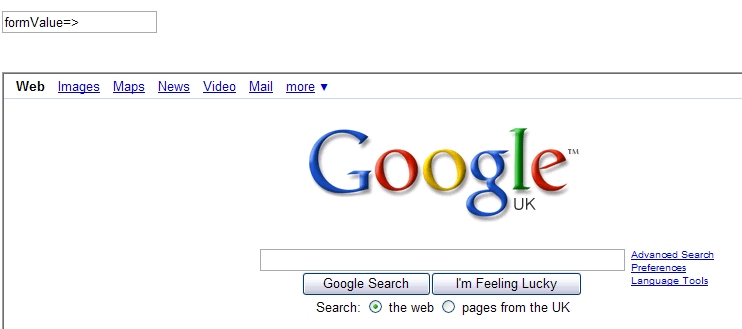
Submit the form, and you will be returned to the same template, but it has translated the html string, and is now proudly displaying someone else's site on your domain.
This is only possible because the form is returning the form value in raw html. You can eliminate this issue by simply adding a html stripping routine to the form. Something like HTMLCodeFormat replaces special characters in a string with their HTML-escaped equivalents.


|
Adding custom Chrome to your AIR application |
||||||||
Whilst creating my last AIR application I found that the standard 'Chrome' that is provided by the OS just didn't match the application look and feel at all.
After a little searching I found that there are a few key elements in your application that you need to change to remove the standard operating system Chrome, and stop Flex builder from replacing it with its own.
Firstly in your application-app.xml document look for the 'systemChrome' xml value. Setting this to none will disable the operating system Chrome. As we are using the 'WindowedApplication' Flex builder will automatically start using its own Chrome framework, so we need to turn that off too.
2<systemChrome>none</systemChrome>
3
4<!-- Whether the window is transparent. Only applicable when systemChrome is none. Optional. Default false. -->
5<transparent>true</transparent>
This is done in the WindowedApplication code, set showFlexChrome="false" and that will disable Flex from using its default Chrome.
2<mx:WindowedApplication xmlns:mx="http://www.adobe.com/2006/mxml" layout="absolute" initialize="init()" showFlexChrome="false">
Now that we have completely turned it all off, we need to build our own. In this application I am using a canvas with rounded corners that is 15 pixels larger than the application canvas, to give the impression of a border all the way around. Inside that canvas I've added two controls.
2<mx:Label text="X" styleName="controls" toolTip="Close" x="184" y="1" click="onClose()" />
These simply replicate the functionality that the minimise and close buttons give a user on a standard window. The functions they call are:
2 {
3 stage.nativeWindow.minimize();
4 }
5
6 public function onClose():void
7 {
8 stage.nativeWindow.close();
9 }
And with that you fully customise the look and feel of your applications Chrome.
|
Flex Currency Formatter Example |
||||||||
Whilst developing a new Flex shopping cart I came across an issue in dealing with the formatting of currencies for the payment system. The previous version of the shopping cart had preformatted values stored in the actual database, so I was simply displaying them in the Flex front end.
In this version there is the specific requirement that it is able to handle a multi currency configuration. So I thought I'd dig out the documentation on the Flex currency Formatter.
Firstly create a CurrencyFormatter object, and specify the currency symbol, and any other formatting parameters that you require.
Next create a NumberValidator, as this will validate our entered value as a numeric value, we don't need to try and re-format alpha numeric values.
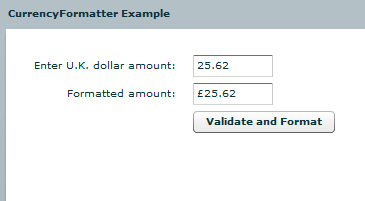
Then create a form to run the test validation against. I often find it easier to build a test mechanism at the same time. Below is a simple submission form, in the form we just enter the value, click the Button, which fires the Format() function.
2<!-- Simple example to demonstrate the CurrencyFormatter. -->
3<mx:Application xmlns:mx="http://www.adobe.com/2006/mxml" layout="absolute">
4
5 <mx:CurrencyFormatter id="ukFormatter" precision="2"
6 currencySymbol="�" decimalSeparatorFrom="."
7 decimalSeparatorTo="." useNegativeSign="true"
8 useThousandsSeparator="true" alignSymbol="left"/>
9
10 <mx:NumberValidator id="numVal" source="{priceUK}" property="text"
11 allowNegative="true" domain="real"/>
12
13 <mx:Panel title="CurrencyFormatter Example" width="75%" height="75%"
14 paddingTop="10" paddingLeft="10" paddingRight="10" paddingBottom="10">
15
16 <mx:Form>
17 <mx:FormItem label="Enter U.K. dollar amount:">
18 <mx:TextInput id="priceUK" text="" width="50%"/>
19 </mx:FormItem>
20
21 <mx:FormItem label="Formatted amount: ">
22 <mx:TextInput id="formattedUKPrice" text="" width="50%" editable="false"/>
23 </mx:FormItem>
24
25 <mx:FormItem>
26 <mx:Button label="Validate and Format" click="Format();"/>
27 </mx:FormItem>
28 </mx:Form>
29
30 </mx:Panel>
31
32</mx:Application>
The Format() function checks that the value is numeric, and applies the CurrencyFormatter object to the value. Then we simply assign the newly formatted value back to our Text field in the form.
2 <![CDATA[
3
4 import mx.events.ValidationResultEvent;
5 private var vResult:ValidationResultEvent;
6
7 // Event handler to validate and format input.
8 private function Format():void {
9
10 vResult = numVal.validate();
11
12 if (vResult.type==ValidationResultEvent.VALID) {
13 var temp:Number=Number(priceUK.text);
14 formattedUKPrice.text= ukFormatter.format(temp);
15 }
16
17 else {
18 formattedUKPrice.text="";
19 }
20 }
21 ]]>
22 </mx:Script>
|
AIR Phone Book application - Part 3 (Full code) |
||||||||
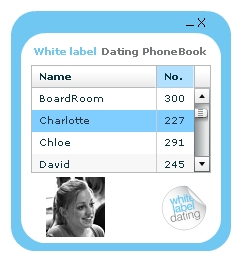
Below is the full code in one run for the PhoneBook AIR application.
2<mx:WindowedApplication xmlns:mx="http://www.adobe.com/2006/mxml" layout="absolute" initialize="init()"
3 height="280" width="294" horizontalAlign="center" verticalAlign="middle" showFlexChrome="false">
4
5<mx:Script>
6 <![CDATA[
7
8 import mx.controls.Alert;
9 import mx.collections.*;
10 import mx.rpc.events.FaultEvent;
11 import mx.rpc.events.ResultEvent;
12 import mx.collections.ArrayCollection;
13
14 [Bindable]
15 private var loadedData:ArrayCollection;
16
17 public function init():void
18 {
19 // start the move listener
20 moveListener()
21 // get the remote data
22 getData()
23 }
24
25 public function moveListener():void
26 {
27 // mover event
28 outerCanvas.addEventListener( MouseEvent.MOUSE_DOWN, moveWindow );
29 }
30
31 public function getData():void
32 {
33 popData.getData();
34 }
35
36 public function moveWindow( event:MouseEvent ):void
37 {
38 var str:String = event.target.valueOf();
39
40 // if its a datagrid then don't do the move
41 if ( str.search("displayPeople") >= 1)
42 {
43 // Do nothing
44 }
45 else
46 {
47 stage.nativeWindow.startMove();
48 }
49 }
50
51 public function onMinimize():void
52 {
53 stage.nativeWindow.minimize();
54 }
55
56 public function onClose():void
57 {
58 stage.nativeWindow.close();
59 }
60
61 public function resultsHandler(event:ResultEvent):void
62 {
63 // trace(event.result)
64 displayPeople.dataProvider = popData.getData.lastResult
65 }
66
67 public function faultHandler(event:FaultEvent):void
68 {
69 Alert.show("Error: " + event.fault.faultString, "Application Error");
70 }
71
72 public function changeImage(img:String):void
73 {
74 userImage.visible = true
75 userImage.source = "http://www.url.co.uk/wld/phonebook/" + img
76 }
77
78 ]]>
79</mx:Script>
80
81<mx:Style>
82 .header {color: #70c7f1;}
83 .greyHeader {color: #777879;}
84 .controls {color: #000000; font-size: 13pt;}
85</mx:Style>
86
87 <mx:WebService id="popData" wsdl="http://www.url.co.uk/wld/services/phoneBook.cfc?wsdl" showBusyCursor="true" useProxy="false">
88 <mx:operation name="getData" fault="faultHandler(event)" result="resultsHandler(event)" />
89 </mx:WebService>
90
91 <mx:Fade id="fadeOut" duration="1.0" alphaFrom="1.0" alphaTo="0.0"/>
92 <mx:Fade id="fadeIn" duration="2000" alphaFrom="0.0" alphaTo="1.0"/>
93
94 <mx:Canvas id="outerCanvas" x="0" y="0" width="220" height="240" backgroundColor="#70c7f1" borderStyle="solid" cornerRadius="25" borderThickness="0">
95
96 <mx:Canvas id="innerCanvas" x="10" y="22" width="200" height="210" backgroundColor="#FFFFFF" borderStyle="solid" cornerRadius="25" borderThickness="0">
97
98 <mx:Label x="10" y="10" text="White label" id="header" styleName="header" fontWeight="bold"/>
99 <mx:Label x="78" y="10" text="Dating PhoneBook" styleName="greyHeader" fontWeight="bold"/>
100 <mx:DataGrid id="displayPeople" x="10" y="32" width="180" height="108" itemClick="changeImage(displayPeople.selectedItem.IMAGE)">
101 <mx:columns>
102 <mx:DataGridColumn headerText="Name" width="140" dataField="NAME"/>
103 <mx:DataGridColumn headerText="No." width="40" dataField="NO"/>
104 <mx:DataGridColumn headerText="Img" width="40" dataField="IMAGE" visible="false"/>
105 </mx:columns>
106 </mx:DataGrid>
107 <mx:Image x="138" y="150" source="@Embed(source='wldLogoTiny.png')" />
108 <mx:Image x="25" y="144" toolTip="{displayPeople.selectedItem.NAME}" id="userImage" visible="true" showEffect="{fadeIn}" />
109 </mx:Canvas>
110 <mx:Label text="_" styleName="controls" toolTip="Minimize" x="173" y="-2" click="onMinimize()" />
111 <mx:Label text="X" styleName="controls" toolTip="Close" x="184" y="1" click="onClose()" />
112
113 </mx:Canvas>
114
115</mx:WindowedApplication>